COMP4913 Capstone Project  ·  The Hong Kong Polytechnic University, Department of Computing  ·  2025–2026

User Study — Participation Invitation

Zotero Settings Sync Plugin

A plugin for Zotero 7 and 8 that lets you back up and restore your preferences, citation styles, and shortcuts across multiple devices in two clicks.

~30–45 minutes total
Seeking 5–10 participants
Anonymous & voluntary

About This Plugin

If you use Zotero on more than one device, you have probably noticed that your preferences (keyboard shortcuts, PDF reader settings, citation styles, language, and more) do not carry over automatically. Every new device requires manual reconfiguration, which is time-consuming and easy to get wrong.

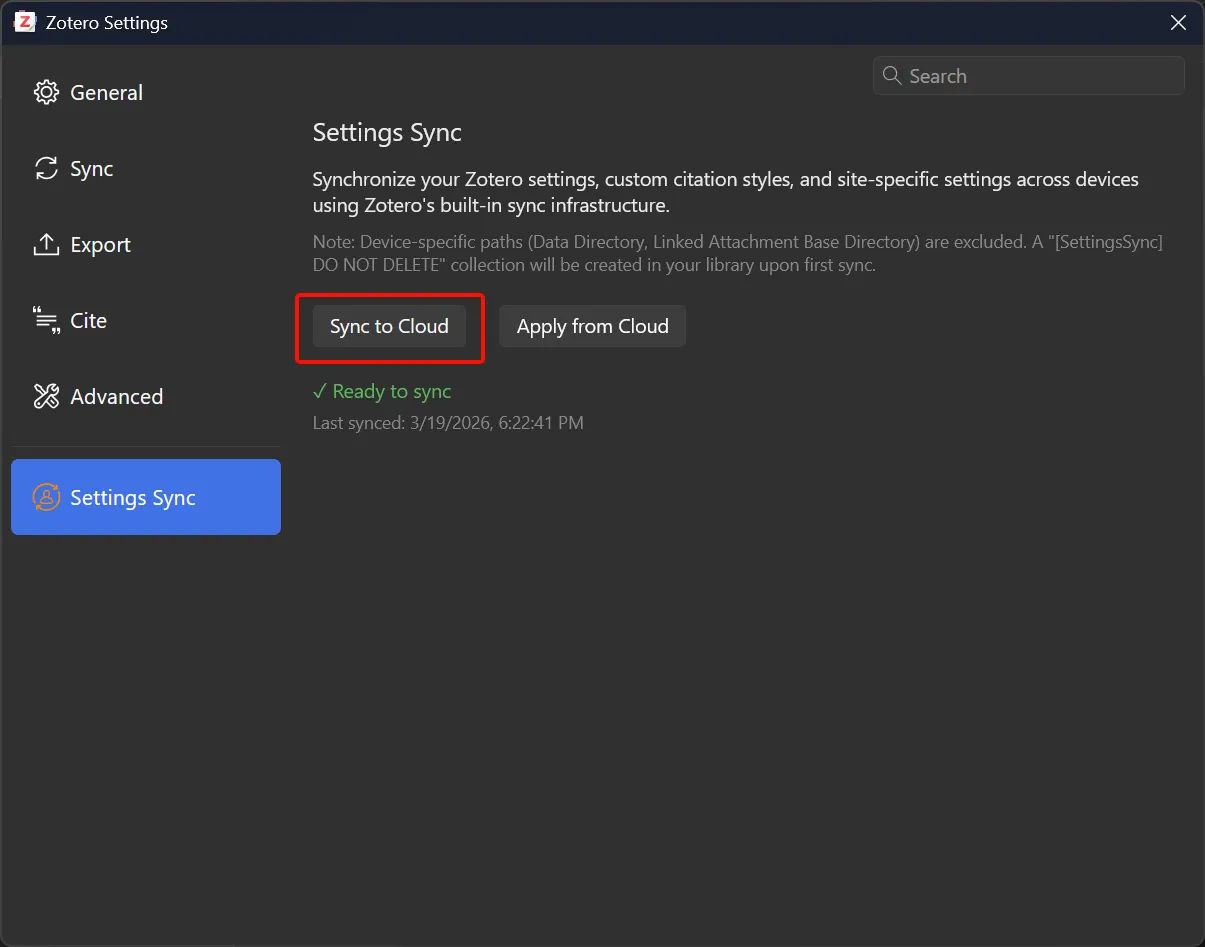
This plugin solves that problem. It adds a Settings Sync tab to Zotero Preferences with two buttons: Sync to Cloud and Apply from Cloud. Your settings are stored securely as a file in your own Zotero library and synced through Zotero's existing cloud infrastructure. No third-party account or server is required.

⚙️

63 Preference Keys

Covers appearance, keyboard shortcuts, PDF reader, file handling, Quick Copy, feeds, and more.

📄

Custom Citation Styles

Syncs any .csl files you have installed yourself, excluding Zotero's built-in defaults.

🔗

No Extra Account Needed

Uses your existing Zotero sync account. Nothing is sent to any third-party server.

🌐

Multilingual UI

Interface available in English, Simplified Chinese (简体中文), and Traditional Chinese (繁體中文).


🎓

About Gavin FUNG

COMP4913 Capstone Project, Final Year Student

I am a final-year student in the Department of Computing at The Hong Kong Polytechnic University (PolyU). This plugin is my capstone project, developed to address a real gap in Zotero's cross-device workflow. This user study is part of the final evaluation phase of the project.

Your participation will directly contribute to the project's evaluation report and help shape future development of the plugin, which will be made publicly available after the project concludes.

PolyU Computing Year 4 COMP4913 Capstone 2025–2026

Your Privacy & Rights

This study follows standard academic research ethics. Please read the following before participating.

Anonymous responses. No names or identifying details will appear in the final report. Data is reported as grouped summaries only.
Voluntary participation. You may stop at any time for any reason without any consequence.
Data use. Responses are used solely for academic purposes as part of a PolyU capstone project.
Safe to install. The plugin file has been scanned with VirusTotal. See the download section for the full scan report.

Download

Download the plugin file (.xpi) below. The file has been scanned using VirusTotal and returned a clean result. The full scan report is linked alongside the download.

🧩
Zotero Settings Sync Plugin

Compatible with Zotero 7 and Zotero 8

🔗 OneDrive 🔗 Google Drive
📄
Installation Guide (PDF)

Step-by-step setup instructions for both devices

🔗 OneDrive 🔗 Google Drive
🛡️
VirusTotal Scan Report

Full antivirus scan: 0 detections across all engines

🔗 View Report
⚠️

Zotero 7 or 8 required. This plugin does not work with Zotero 6. You can download the latest version from zotero.org/download.

Study Tasks

Unlike typical software tests, you will not be asked to do anything artificial. You will use your own, real Zotero settings. There are only four steps, two of which are just clicking a button.

ℹ️

Before you start: Make sure the plugin is installed on both devices and the status shows "Ready" on both. If you need help with installation, download the Installation Guide PDF (OneDrive / Google Drive) or email me.

1

Browse Your Settings on Device A

~5 min

Before touching the plugin, spend a few minutes looking at your current Zotero settings on Device A. You are not changing anything, just getting familiar with what you have.

  • Open Zotero → go to Edit → Settings (or Zotero → Settings on macOS)
  • Browse through the tabs: General, Sync, Export, Cite, Advanced
  • Mentally note 3–5 settings that matter to your workflow (e.g., your default citation style, language, keyboard shortcuts, PDF reader font)
  • Open the Settings Sync tab and confirm the status shows Ready
✔ You have identified which settings to look for on Device B later. No changes needed.
2

Sync to Cloud: Device A

~2 min

Still on Device A, in the Settings Sync tab:

  • Click "Sync to Cloud"
  • Wait for the process to finish
  • When it completes, note the message shown (e.g., "X settings + Y styles synced!")
✔ You should see a green success notification. If you see an error, note down what it says as that is valuable feedback.
Success notification after clicking Sync to Cloud
3

Apply from Cloud: Device B

~5 min

Switch to Device B:

  • Open Zotero on Device B
  • Go to Edit → Settings → Settings Sync
  • Click "Apply from Cloud"
  • Wait for the process to complete
  • When prompted, click "Restart Now". Zotero will close and reopen automatically
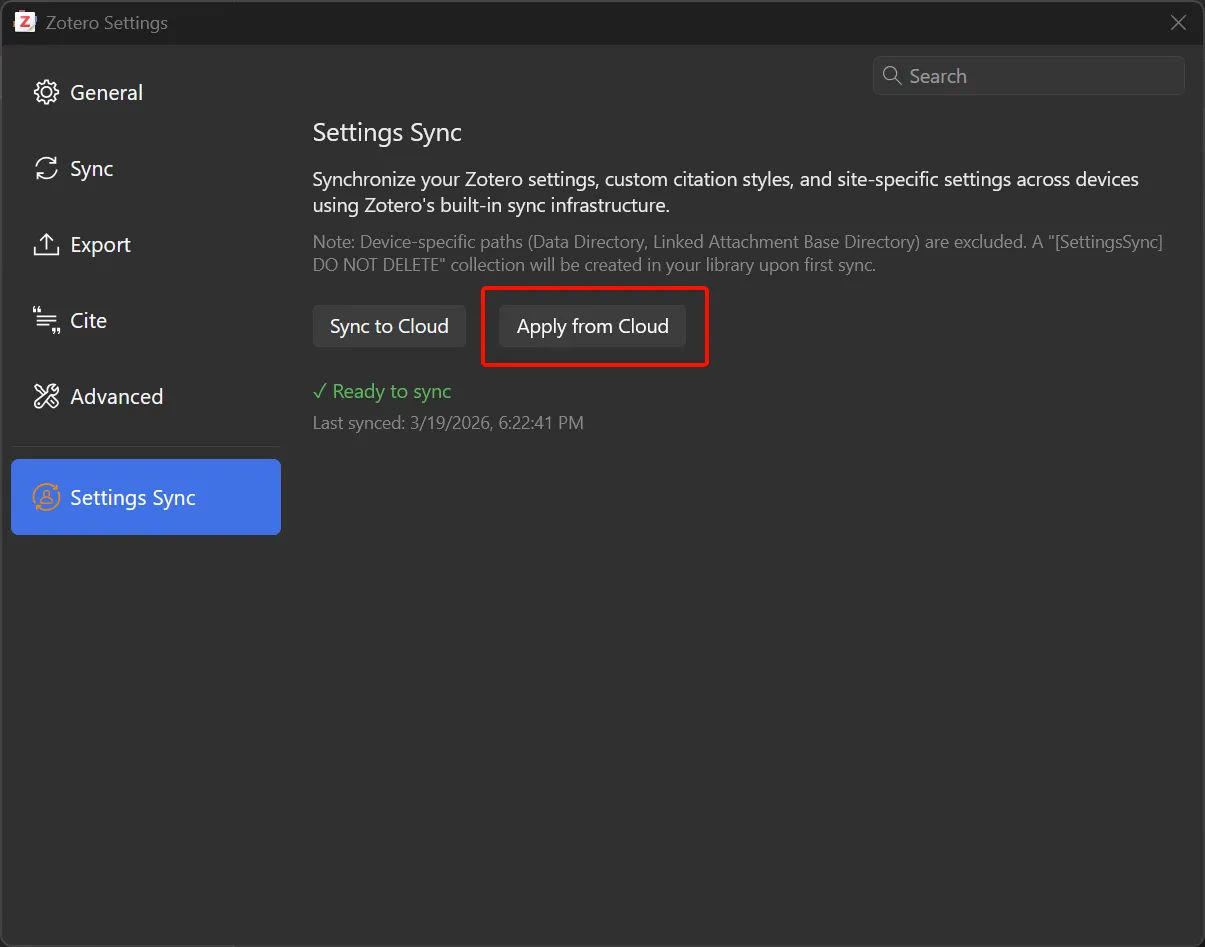
✔ Zotero should restart on its own. This is expected behaviour.
Apply from Cloud button and the restart prompt
4

Verify What Transferred: Device B

~5 min

After Zotero restarts on Device B, go back through Edit → Settings and check the same 3–5 settings you noted in Task 1:

  • Did each setting appear correctly on Device B?
  • Is there anything you expected to transfer that is missing?
  • Did anything change that you didn't want to change?

You do not need to fix anything. Just observe and note what you find. You will be asked about this in the questionnaire.

✔ You have completed all study tasks. Please now fill in the questionnaire below.
↩️

Need to undo the changes on Device B? Simply configure Device B the way you want, then click "Sync to Cloud" from Device B. Or email me and I will walk you through it.

Step 5

Fill In the Questionnaire

After completing the four tasks above, please fill in the online questionnaire. It takes about 8–10 minutes. Your honest answers, especially about things that went wrong or felt confusing, are the most valuable part of this study.

📋 Open Questionnaire

Hosted on Microsoft Forms  ·  No sign-in required  ·  Responses are anonymous

Contact

If you have any questions before, during, or after the study, or if you run into any technical issues, please do not hesitate to get in touch. I aim to respond within 24 hours.

Gavin FUNG, Year 4 Student

Email 24015558d@connect.polyu.hk
Affiliation Department of Computing
The Hong Kong Polytechnic University